How to Setup IPTV on Smart TV: Samsung, LG & TCL (2026 Guide)
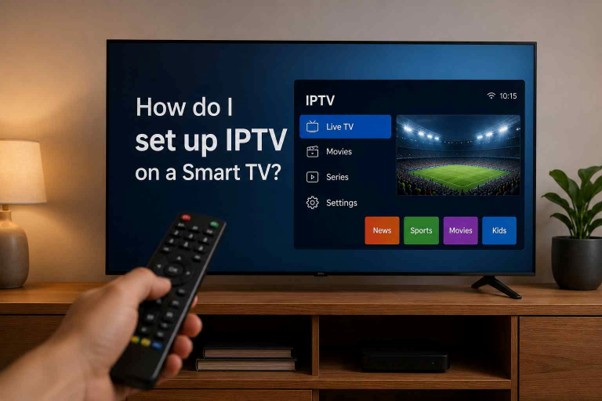
Smart TVs have completely revolutionized how we consume media. If you own a modern Samsung, LG, or TCL television, you no longer need to buy an external Firestick or Android box to enjoy live television. You can stream high-quality international channels directly through your TV's built-in operating system.
However, because every TV brand uses a different operating system, finding the right media player and setting it up can be confusing. In this comprehensive guide, we will show you exactly how to install the industry's best apps—such as IPTV Smart Player Pro, IPTV Smarters Pro, and IBO Player—on any major Smart TV platform.
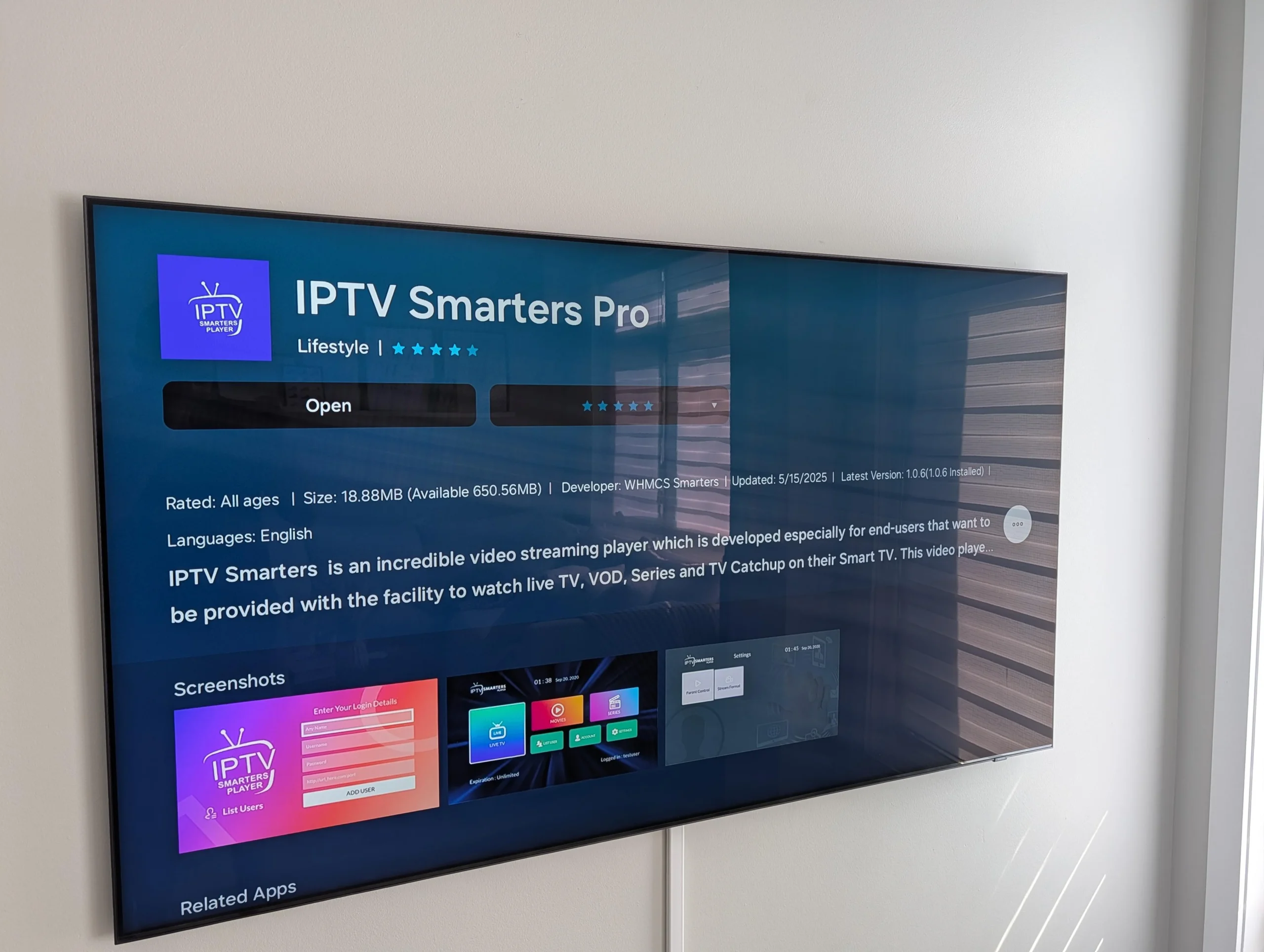
How to Setup IPTV on Samsung Smart TV (Tizen OS)
Samsung uses its own closed operating system called Tizen. While it does not have the Google Play Store, its native App Store has fantastic verified streaming players. Our top recommendations for Samsung are IPTV Smarters Pro and IBO Player.
- Press the Home button on your Samsung remote and navigate to Apps on the bottom menu.
- Select the Search icon (the magnifying glass) in the top right corner.
- Search for IPTV Smarters Pro or IBO Player.
- Select the application and click Install.
- Once the app opens, choose "Login with Xtream Codes API" and enter the Username, Password, and URL provided by your premium IPTV service.
How to Setup IPTV on LG Smart TV (WebOS)
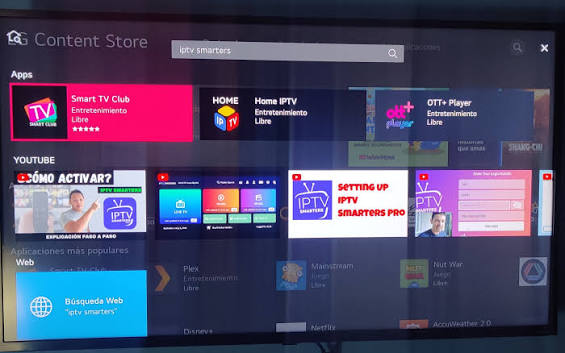
LG TVs run on WebOS, which offers a highly optimized, fast interface for streaming live TV. For LG users, we highly recommend using IPTV Smart Player Pro or Smart IPTV (SIPTV).
- Press the Home button on your remote and go to the LG Content Store.
- Click the search icon and look for IPTV Smart Player Pro.
- Download and launch the application.
- The app will automatically generate and display a unique MAC Address on your TV screen.
- Using your phone or computer, go to the application's official website, enter your MAC address, and paste the M3U playlist link provided by your worldwide IPTV provider. Restart the app on your TV, and your channels will load instantly.
Looking for reliable premium channels?
Skip the frustration of free public lists that constantly buffer and crash. Unlock 25,000+ flawless channels and 150,000+ VODs with the best worldwide IPTV subscription today.
How to Setup IPTV on TCL Smart TV (Google TV / Android TV)
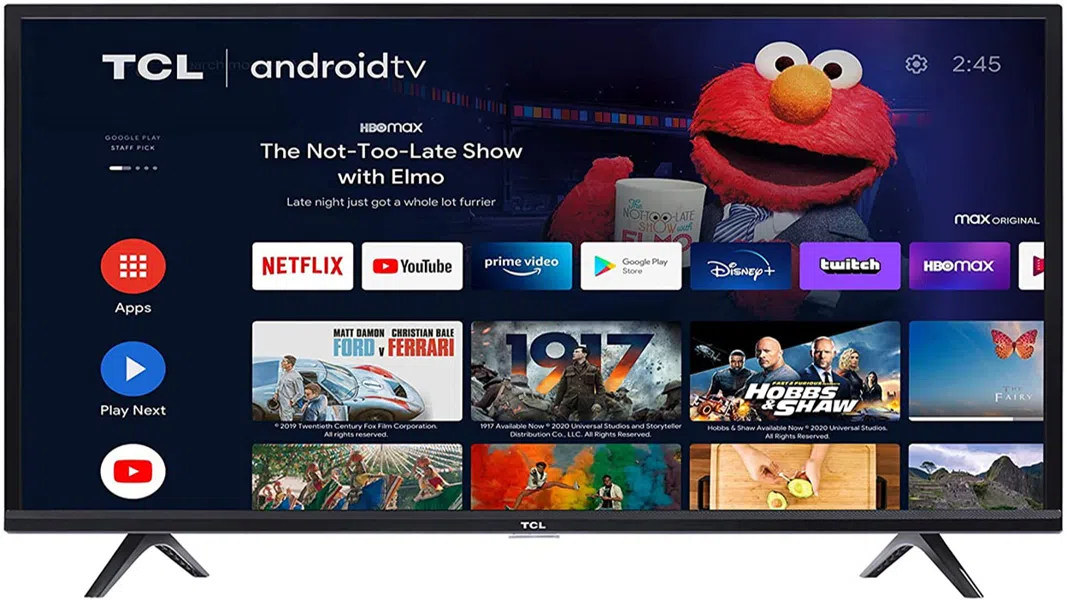
Modern TCL and Sony TVs are incredibly versatile because they run on Android TV or Google TV. This means you have full, unrestricted access to the official Google Play Store and the absolute best players on the market.
- Navigate to the Apps tab on your TCL home screen or open the Google Play Store.
- Search for TiviMate IPTV Player (the undisputed king of Android TV) or IPTV Smarters Pro.
- Click Install and launch the application.
- If using TiviMate, select "Add Playlist", then "Xtream Codes", and enter your premium server credentials. If using Smarters, simply input your Username, Password, and Portal URL.
The Best IPTV Player Apps Ranked (2026)
Choosing the right media player is just as important as choosing your provider. A good player ensures fast channel zapping, no lag, and a beautiful EPG (TV Guide). Here are our top choices to download:
- IPTV Smart Player Pro: Known for its extremely clean user interface and lightning-fast channel switching. Perfect for iOS, Android, and LG users.
- IPTV Smarters Pro: The most universally compatible app. It is entirely free and offers a brilliant "Multi-Screen" feature to watch 4 games at once.
- TiviMate Premium: Exclusive to Android TV and Firestick. It provides a classic cable-TV-style grid layout and allows for live recording.
- IBO Player: One of the most stable and lightweight premium applications available for Samsung Tizen and LG WebOS users.
Best Service & Servers for Your Region
Enjoy local channels, high-speed regional servers, and flawless 4K streaming built for your area. If you want a buffer-free experience with VIP technical support, switch to the ultimate plan today.
- 25,000+ Live Channels
- Worldwide Channels (All Countries)
- 150,000+ Movies & Series
- 4K, UHD, FHD & HD Quality
- Compatible with all devices
- Anti-Freeze™ Technology
- Fast and stable
- Free Setup & Activation
- 24/7 WhatsApp & Email Support