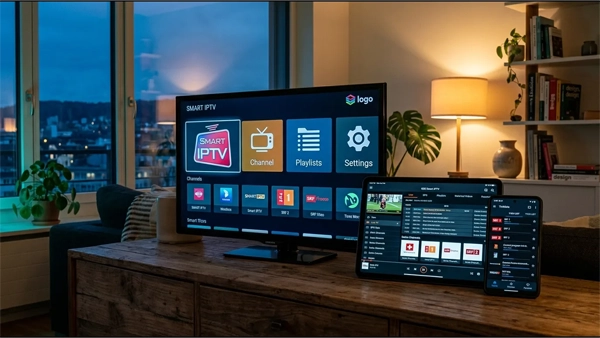
A Fire TV Stick is the most common way people watch IPTV, for three good reasons: it costs very little, it plugs into any television with an HDMI socket, and it runs every player worth having.
It is also the piece of the setup people blame most often when the picture stutters, and usually unfairly. This page is about the hardware — which stick to buy, what the differences actually change, and how to keep it quick. If you have not installed anything yet, the step by step installation guide covers that part; come back here afterwards.
Which stick to buy
Amazon sells several, and the marketing talks about resolution. For IPTV, resolution is the least important difference between them. Memory is the important one.
- Lite / HD models. The cheapest tier, with the least memory. They do play IPTV. But a channel list with tens of thousands of entries has to be held in memory, and on this tier the app slows down, stumbles when you scroll, and sometimes closes on its own. Fine for a small list, frustrating for a big one.
- Standard 4K. Roughly double the memory. This is the point where a large list scrolls smoothly and the player stops closing itself. For most people this is the right stick.
- 4K Max. Same memory as the 4K, more storage and a faster processor and Wi‑Fi radio. Worth the difference if your router is far from the television, or if you keep several apps installed.
The short version: do not buy the cheapest one. The gap in price between the bottom tier and the 4K is small, and it is the single upgrade that changes the day-to-day experience most. If you already own a Lite and it is struggling, that is what is struggling — not your provider.
Storage fills up faster than people expect
Most sticks ship with a small amount of storage and the system takes a good part of it before you install anything. Two or three apps and a few weeks of cached guide data is enough to leave a stick crawling.
- Delete installer files as soon as an app is installed — Downloader offers, and most people press the wrong button.
- Uninstall the apps that came pre-loaded and that you will never open.
- Clear the player's cache every few months. It rebuilds in a minute and it is the cheapest speed-up available.
Wi-Fi is the problem far more often than the stick
The stick sits behind your television, and a television is a large metal object. Add a wall or two between it and the router and the signal arriving at the stick is nothing like the speed on your bill.
The test that settles it in one minute: take your phone to where the television is, connect to the same Wi‑Fi, and run a speed test there. That is the number the stick is working with.
- An Ethernet adapter is the best money you can spend on a Firestick. It plugs into the power port and takes a network cable. It costs less than a month of most subscriptions and it removes an entire category of problem permanently.
- If a cable is impossible, use the 5 GHz network rather than the 2.4 GHz one, and move the router off the floor and out of the cupboard.
- Use the little HDMI extender that comes in the box. Getting the stick out from behind the metal of the television genuinely helps the signal.
The stick is only the last step of the journey
Before the picture reaches your Firestick it has to travel from a server. Ours is picked for your region rather than shared worldwide, which is what decides whether an evening match holds together.
See the plansWhy it gets hot, and why that matters
A Firestick is a small computer with no fan, wedged behind a television that is also producing heat. When it gets too warm it slows itself down deliberately to avoid damage, and a slowed-down stick stutters.
The signs are recognisable: it is fine for the first hour and worse afterwards, and it is worse in summer. If that matches what you see, use the HDMI extender so the stick hangs in open air, and make sure it is not tucked inside a closed cabinet.
The settings that make a real difference
- Increase the buffer in your player. The channel takes a moment longer to start and interrupts far less. Nothing else in the app comes close.
- Match the display refresh rate. Most players can switch the television to the frame rate of the stream. Live sport in particular looks much smoother with this on.
- Switch decoding. If a channel gives you sound and a black screen, swap between hardware and software decoding. That fixes it far more often than reinstalling anything.
- Drop one step in resolution if a specific channel struggles. From 4K to 1080p halves the bandwidth, and from three metres away almost nobody can tell.
- Turn off the Amazon home screen video previews. They play in the background and eat both memory and bandwidth before you have opened anything.
Restart it properly, and restart it regularly
A Firestick is rarely switched off, so it runs for months at a time. Almost every “it worked yesterday” complaint clears up after a real restart of both the stick and the router — unplugged at the wall for thirty seconds, not merely sent to sleep.
Doing that once a month, and before you contact anybody's support, saves a great deal of time.
When it is the stick and when it is not
This is the part worth remembering, because it decides whether buying new hardware will help you or waste your money.
- Menus are slow, the app closes, scrolling stutters. That is the stick. Usually memory, sometimes storage, sometimes heat.
- The picture breaks up at random through the day. Usually the connection between your router and the stick. Try the cable.
- Everything is fine until the evening, or until a big match starts. Not the stick, and not your internet. That is a server running out of capacity when everybody arrives at once — which is why where your server sits matters more than which stick you own. A new Firestick will not change it.
If you are unsure which of the three you have, the buffering guide works through them in order.
Is a Firestick still the right choice?
For most people, yes. It is cheap, it is easy to replace, it runs TiviMate and IPTV Smarters, and if it dies you are out very little.
An Android TV box with more memory is a better machine for very large channel lists, and it usually has an Ethernet socket built in rather than as an accessory. If you have already replaced a struggling stick once, that is the direction worth looking. For everybody else, a 4K stick with a network cable is a setup that simply works.