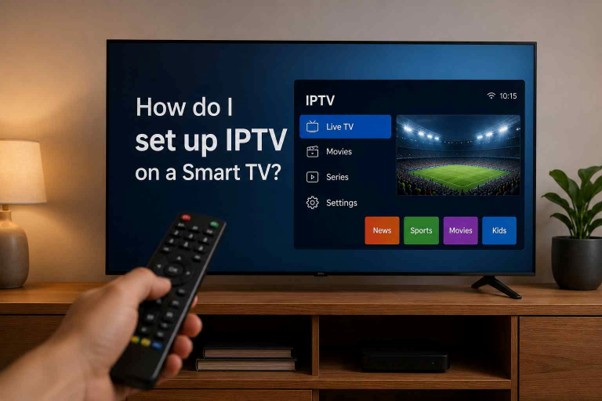
If you have recently purchased an Amazon Firestick or an Android TV Box to cut the cord on expensive cable bills, you have probably heard people talking about TiviMate. It is widely regarded as the absolute best media player available for cord-cutters today.
But for beginners, it can be slightly confusing. You download the app, open it up, and... nothing is there. Why? Because TiviMate is just an engine. To make it work, you need the fuel.
Why TiviMate is the King of IPTV Players
Before we explain how to set it up, you need to understand why millions of people refuse to use any other application. TiviMate essentially takes a raw internet stream and transforms it into a premium, professional cable box experience.
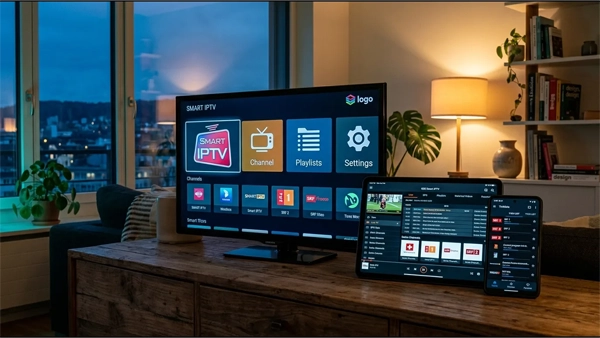
- A Beautiful TV Guide (EPG): It pulls in data to show you exactly what is playing now, what is coming up next, and provides descriptions of movies and shows.
- Catch-Up TV: If you miss a live sports match, TiviMate allows you to rewind the live TV channel up to several days in the past so you can watch the replay.
- Multi-Screen Viewing: Want to watch four Premier League games at the exact same time? TiviMate's multi-view feature allows you to split your TV screen and watch multiple channels simultaneously.
The Catch: TiviMate is Empty by Default
Here is the most important thing you need to know: TiviMate does not provide any TV channels, movies, or sports. It is simply an empty media player, much like VLC or Windows Media Player.
To watch live TV, you must purchase a subscription from a premium IPTV provider. Once you purchase a subscription, the provider will send you login details (usually called an Xtream Codes API or an M3U Link). You paste those details into TiviMate, and suddenly, the app populates with thousands of channels.
Need Channels for Your TiviMate App?
To get the best experience without buffering, you need to connect TiviMate to a premium localized IPTV server.
View Premium SubscriptionsHow to Setup TiviMate (Step-by-Step)
Once you have secured your premium subscription, setting up the app takes less than five minutes. Follow these simple steps:
1. Get Your Provider Info
Purchase a plan from a reliable provider. They will email you a Username, Password, and a Server URL.
2. Add Playlist in App
Open TiviMate, click "Add Playlist", select "Xtream Codes", and enter your provided details.
3. Let it Load & Watch
Allow the app 60 seconds to download the TV Guide (EPG). You are now ready to stream live TV.
Conclusion: The Ultimate Pairing
TiviMate is a masterpiece of software, but a car is useless without premium fuel. If you connect TiviMate to a free or cheap public playlist, it will constantly buffer and crash. By pairing the world's best IPTV player with a localized, anti-freeze IPTV subscription, you create an unbeatable home entertainment setup.
Not installed it yet? The full Firestick walkthrough takes you from unknown sources and Downloader through to the login screen, including the five errors that come up most.